
- Title: Clean Stock KitKat by Komu
- Listed: February, 2015
- Last modified: 02/22/2015 4:12 am
- Version: 1.03
You must be logged for ROM download.
37418 total views, 5 today
11 Total favorites
 Member Info
DESCRIPTION
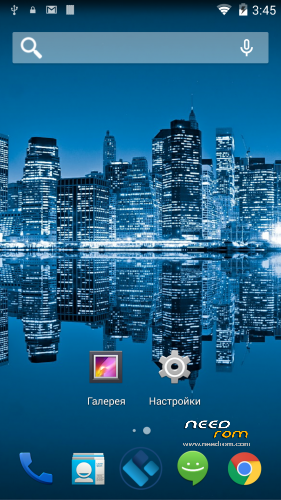
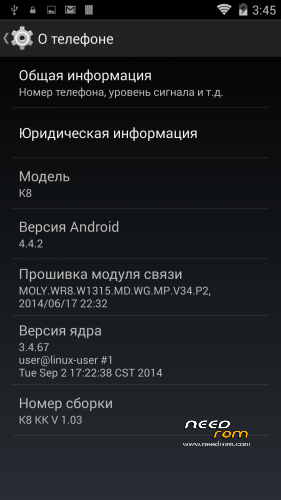
This is stock, clean, unrooted Zopo ZP998 KitKat ROM published by Komu, version 1.03
Taking into account new models coming from Zopo, i believe this ROM may be the final stock one (just thoughts.)
Чистая заводская прошивка KitKat для Zopo ZP998 от Komu, без рут-доступа, версия 1.03
As opposed to Zopo, Komu ROMs usually do not contain any malware (Caivs or lovelyfonts e.t.c.).
Flashing (and optional rooting) instructions: (all your data will be lost, make backups preliminary!)
PLEASE READ THROUGH THIS MANUAL =B=E=F=O=R=E= YOU START DOING ANYTHING
1) Download and extract the whole package "K83G-103.zip" to a safe place with minimal path length, say, "d:\ROM"
2) If not done yet, install drivers from "1 – DRIVERS" subfolder
3) Shut down ZP998, remove SIM-card(s) and microSD memory card from ZP998
4) Remove all your files from your microSD card (backup to PC), make it clean (otherwise be prepared to problems after ROM install)
If you have a new clean microSD XC, it may be factory formatted as ExFAT, that is unsupported by ZP998. Reformat it to primary partition with FAT32 with Minitool Partition Wizard http://www.partitionwizard.com/free-partition-manager.html (Other file system options for memory card will not be discussed here)
5) Remove battery from ZP998
6) If you do not want to root your phone, please skip the next step and proceed to step 11) right away)
>root> 7) Download a modded recovery, this will do: https://www.needrom.com/download/zp998/
>root>  extract the recovery.img file only from the recovery zip, and place it into "3 – Firmware" folder, overwriting the stock one
>root> 9) Download the SuperSU zip (see links above)
>root> 10) Do not extract the UPDATE-SuperSU-v2.40.zip archive, just copy it to the root of your microSD card as it is
11) Optionally, if you want to repartition your internal memory to have more room for applications (10GB), you can download (see links) the EBR_10GB.rar archive, and extract it's contents, two EBR1 and EBR2 files to "3 – Firmware" folder, overwriting the old files.
12) Connect your proven quality USB cable to PC only, leave other end not connected to ZP998!
13) If it is not friday on your calendar, navigate to "2- Flashtool 5.144" folder and start flash_tool.exe
14) It is possible that you get and error saying about scatter not found, just proceed with OK
15) Now, you must manually point the Flash Tool to the correct scatter file. Click "Scatter-loading" button, and go to "3 – Firmware" folder to find the "MT6592_Android_scatter file" (ckick it to choose)
All other fields will be filled automatically.
16) Now, it is very important: the next option depends on what Android version you currently have on your ZP998 (i.e. the ROM that you are going to "overwrite")
- If you have another veriety of KitKat, you must use "Download Only" dropdown option in Flash Tool
- If you have a 4.2.2 (JellyBean) ROM, then you must use "Firmware Upgrade" only! Otherwise you can lose IMEI and get into trouble!
The general rule is:
- installing same Android version —> use "Download Only"
- installing different Android (from 4.2.2 to 4.4.2 or from 4.4.2 to 4.2.2) —> "Firmware Upgrade"
Never, NEVER use the "Format All + Download" option! You WILL lose your NVRAM and IMEI data, and will have a very bad time trying to recover them. Never try this option, even if you get stuck flashing. Point. This option is for experienced ppl only who know what they want. You have been warned.
If you have a Zopo 9520 phone, not an original ZP998 one, then i warn you to not flash the preloader part of firmware (uncheck it in Flash Tool). I have never had a 9520, and can not assist with how to tell it from ZP998, maybe by a sticker under battery. In other words, if you have a 9520, be twice alert doing anything, and stop immediately if unsure! Problem is "Firmware Upgrade" mode demands all parts of ROM to be checked to run. To overcome this, you may try borrowing preloader from another 9520 "KitKat" ROM, but i do not recommend doing it and i will not be responsible if you fail.
17) In Flash Tool, click the "Download" button with the green arrow. Your PC will be waiting for connection now.
18) Without the battery, grab your ZP998 in your left hand (screen facing you), so that you can press and hold the "volume up" button with your thumb (do it).
19) Connect the spare end of USB cable to your ZP998 USB port and with your free forefinger, press the phone "power" button (still holding the "volume up")
20) There should be some activity started with your PC (Windows reporting of a device detected/connected, e.t.c.) and promptly, there should be a progress bar in the lower part of Flash Tool moving.
21) If everything goes well, the progress bar changes colors at different stages, and after few minutes, you will see a square popup window with a green checkmark.
If you get a "PMT has changed for ROM…" error in Flash Tool, do not panic!
You have to rollback to a stock JellyBean ROM first, let it be, "14-06-18",
http://www.zopomobileshop.com/content/9-download-zopo-mobile-latest-rom, look for this download:
| ZP998 | 4.2 | 140618 | 451MB | 18/06/14 |
download it, do anything as described here from 1) (skip recovery and root parts), and then start this manual once again from the beginning, with all options and cautions, to upgrade to this KitKat.
If you have encountered any other error , better stop and ask someone experienced for help
Now, presuming you have just flashed successfully the new KitKat 1.03, do the following:
22) Unplug USB cable (you can exit Flash Tool application), and insert the memory card into your ZP998. Do not insert SIM card(s) yet – you can do it any time later. Insert the battery.
23) If you chose earlier not to have root, you can power your ZP998 on and start using it. The first boot will be a bit longer than usual. And, you are done with flashing. If you connect to Wireless during the setup wizard and log into your Google account, all your applications and settings will be automatically downloaded to the phone (in case you checked that option in the previous ROM). If you want to start from scratch, skip both Wifi and Google account parts and set up everything manually.
If you made the rooting parts previously, you need a few extra steps:
24) You need to get into modded Recovery first, to flash SuperSU update. To get into recovery, you must power on your phone, while you hold the "volume up" button, and the phone is connected to PC or charger. These conditions are mandatory! You will not get into mod.recovery if you do not press "power" and "volume up" and your phone is being connected to PC or charger. Do not be confused with "power" and "volume down" option to get to Chinese Engineering menu. This is different!
25) Once in Recovery, choose "Install", and select the "UPDATE-SuperSU-v2.40.zip" file that you recently have put on your memory card. Swipe to install it, and then reboot. Once in Android OS and complete with setting Wifi and Google account, download the fresh version of SuperSU and install it.
26) The final touch is to make sure SuperSU works as supposed. Start SuperSU app, go to Settings tab, scroll down to Security and uncheck "Mount namespace separation" (this may look different with your language, 3rd checkmark in security list in current, 2.40, version).
There you go, ready to use your new KitKat.
I highly recommend you to install Xposed framework and GravityBox [KK] to highly enhance the ROM features.
I do not hold any copyrights to the materials or solutions given here. It was my pleasure to collect all necessary information from open sources and take my time to present it in useful form.
※Please make a backup of your device before installing or updating ROM
it works in my zp9520, i also updated the touchscreen to lastest version v42 and the smart wake works fine after the update
the only thing is not working gps
very nice work and manual doperst. thank you.
for me works fine, after part 21 i had the PMT has changed for ROM…" error so i had to use a previous version of flashtool v5.1348 and worked for me without restoring first to 4.2.2rom.
sorry, i noticed a battery drain over 30% faster than my previus kitkat.
My gps worked perfect before, after install this rom -> no work
j'ai fais Format All + Download et j'ai perdu mes imei, je les ai restauré, et mon zp998 fonctionne parfaitement, pas de souci avec la nvram
Le gps a eu beaucoup de mal a ce reveiller, aujourd'hui il a l'air de fonctionner, je testerai si je ne fais pas de sortie de route.
ma consommation de batterie est diminué par rapport a la derniere version officiel zopo
Hello
the first Rom for zp998 I succeed to install on my zp998 with root and recovery fully functional
Very nice work and perfect tuto
I have to test this rom with my SIM put the first test without SIM are very correct.
thanks for sharring such work
good rom fast and all but gps wont work
any advice ?
Thanks
in the beginning i was afraid as i never had done anything like this before…. but the instructions are so perfect that anybody can do it….
the phone works perfect… i am so happy that zopo returned to smoothed working…
THANK YOU so much all the team…!!!!!!!
hello, one question to this ROM, after upgrade from Android 4.4 (Dowload via Flashtools) and restart, i cant see any apps or icons on desk-only i see Clock, Musicplayer and notification.How can I reach the " normal " screen . Or start the launcher , apparently this is not loaded . I see only that de simcard is detected . I despair slowly ....anybody can help me about this issue – no settings i can reach, no apps only the clock, notifications an musicplayer are shown.
hello, has anybody an idea about this issue , ;( i see only the screen desk, (launcher) and can swipe the screens,(Notification, clock and player) tthats crazy-no setting, no apps to start, NOTHING!
its an problem with my phone, i made an update via flashtools from 4.2.