
- Title: ADB MANAGER PARTITION
- Listed: December, 2024
- Last modified: 12/20/2024 6:16 am
- Version: ANDROID
You must be logged for ROM download.
4859 total views, 1 today
1 Total favorites
 Member Info
DESCRIPTION
ADB – MANAGER – PARTITION
Features
-
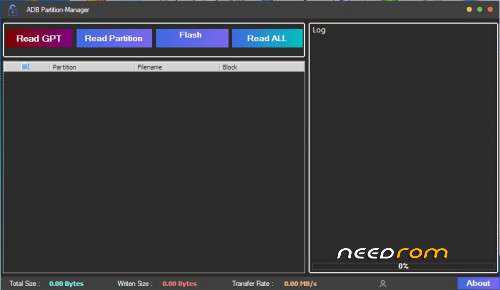
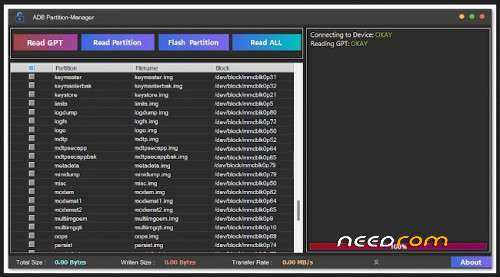
Read GPT
Analyze and display the partition table (GPT) of your device. -
Read specific partitions on your device.
-
Flash Partition
Flash images to desired partitions. -
Read ALL
Dump the entire ROM for backup purposes.
How to Back Up a Full ROM Using ADB Backup Restore Tool
-
Download the ADB Backup Restore Tool and extract the contents to a directory on your computer.
-
Run the Tool
Launch the application by openingADB-Backup-Restore-Tool.exe. -
Initiate the Backup
Click the ‘Read ALL’ option in the tool. -
Prepare Your Device
- Connect your device to the computer via USB.
- Ensure the device is rooted and has Shell Permission enabled in the Magisk app.
- If a root permission prompt appears, allow it manually in the Magisk app.
-
The tool will start dumping the ROM. Depending on your device, this process can take 30-35 minutes, especially for newer devices with Super Partitions ranging from 4GB to 16GB.
How to Flash a Partition via ADB
-
Run the Tool
LaunchADB-Backup-Restore-Tool.exe. -
Read GPT
Click on the ‘Read GPT’ option to load the partition table. -
- Locate the desired partition under the filename field.
- Double-click the corresponding cell and select the image file you want to flash.
-
Start Flashing
Click ‘Flash Partition’ to begin the process. -
Reboot Device
Once flashing is complete, reboot your device to finalize the changes.
Note: Flashing the wrong partition can permanently brick your device. This tool is intended for experts only. Use it at your own risk.
THANK AND DONATE…
FILE FREE
※Please make a backup of your device before installing or updating ROM
Device not detecting