
- Title: as copying the rom the phone to pc
- Listed: January, 2015
- Last modified: 01/20/2015 3:07 pm
- Version: 2.5.3
You must be logged for ROM download.
22249 total views, N/A today
11 Total favorites
 Member Info
DESCRIPTION
Thanks to your donations we can be aware of what you need
Hello everyone, this time, I leave this Tutorial hopefully will be helpful, is to read the firmware chipset based phones MT65XX
I first have to download the files you left attached ..
And another thing, please, before reading must meet these two points …
1) Always Perform a Hard-Reset before executing this process is very important ..
2) Your phone must have user rights ROOT, there are many guides here in the forum, the easiest solution is to find, download and install VROOT.
3) Neceitan Micro-SD card with at least 1GB free.
Well, what we are …
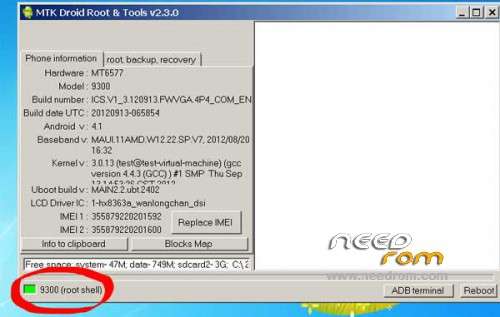
With the phone in debug mode, and having it with ROOT, open the MTK_DroidTools 2.5.3, if we all well, we have the following screen:
(In my case, I'm doing this with a phone Tele1 A11)

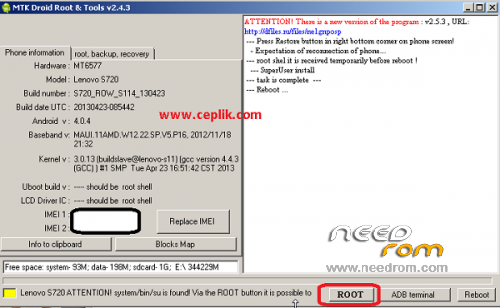
Select the ROOT option, and the yellow box in the lower left corner, change color Green …

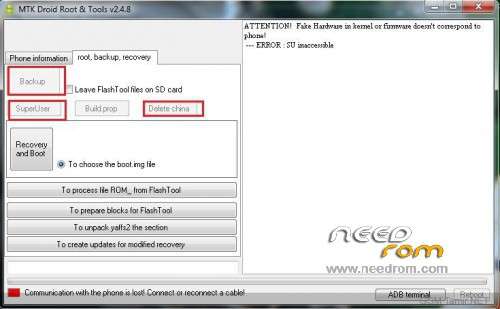
Taking ROOT SHELL, we move to the "Root, Backup, Recovery .." tab
And select the Backup option

And then the reading process begins, the time varies from phone to phone, some are 5 mins, and others arrive 20 minutes

After a while, we have the following message

Select the option "NO"
After this, we will have the firmware, but we can not give use, yet ..
To upload the firmware to SP_Flash_Tool, select the "Check and prepare Blocks for FlashTool"

We will open a window looking for the files.md5 file, look in the same folder where you have the MTK_DroidTools, in the Backup folder, we will have another folder
With the name of your phone, and the date on which the reading was performed ..

 Upon completion of this process, we will have the firmware to load the SP_FlashTool, within the same folder where the backup was created, will be another folder called! Files_To_FlashTool

That is the most important to us folder, to make things easier, the move to Desktop (Or any other side where then remember ..)
To load the firmware to another phone, do the following:
Open the SP_FlashTool (Deputy) and select the option Scatter-Loading ..
We will open a window looking for the Scatter, for this, we move to the folder that we copied to the desktop, and select the file MT6572_Android_Scatter


(At the bottom, the program says "Searching")
We connect the phone off, we took the battery, entered, and connect the USB cable …
And that's it.
If someone has a problem, I leave it down here.
PS: I ask you please to share their read ROM's, these much needed us.
PD2: Doing this with a fully charged battery.
PD3: To finish completely, do not use much disk space, and share more easily Files_To_FlashTool compressed folder, and upload compressed here ..!
※Please make a backup of your device before installing or updating ROM
thank you
please can anyone help me out I having a trouble trying to fix my blu advance 4.0l
no picture..