
- Title: AXIO PICOPAD GGT3
- Listed: September, 2014
- Last modified: 09/24/2014 12:28 am
- Version: V0
You must be logged for ROM download.
13497 total views, 2 today
 Member Info
DESCRIPTION
STEP 1
Make sure your tablet is charged. Download the Rockchip batch tool
STEP2
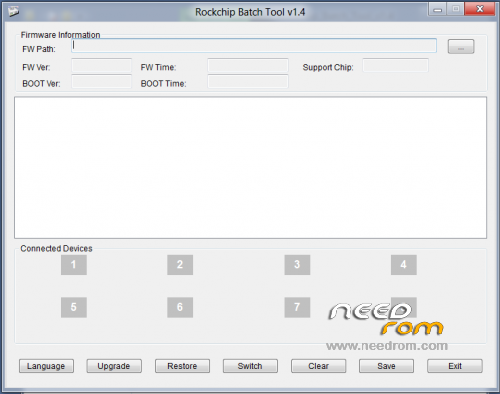
Unzip the file and start the RKBatchTool program,
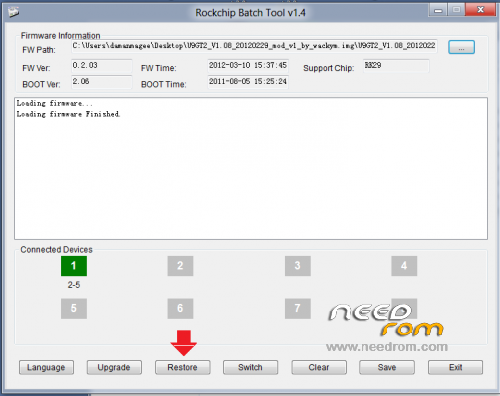
and use the firmware path selector to find your firmware image.
Now put your tablet into recovery mode or flash mode as it is sometimes
called and connect it to your PC. As you will see you will see that your
device is connected, indicated by the green box. If you are upgrading from
say a manufacturers Rom to a new version that hit the upgrade button,
if you are installing a custom firmware that usually it is the restore button.
Step 3
Once you have done this the software will send the firmware
to your tablet and the flashing process will begin,
you will see firmware loading on the RockchipBatchTool screen,
just leave it to do its work and be patient and be careful not to knock
or touch anything while it is flashing. Once the process has completed your
tablet will disconnect from the program and the green box will
not be highlighted. Now the tablet will begin to flash and reboot with your
new firmware on it!
If this helps don't forget to rate it
ATTENTION :
at your own risk
※Please make a backup of your device before installing or updating ROM