
- Title: CHEETAH 2 V14
- Listed: July, 2017
- Last modified: 07/21/2017 1:40 pm
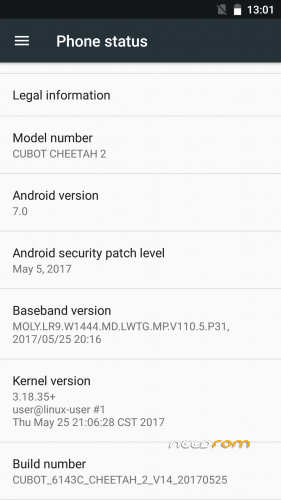
- Version: CUBOT 6143C CHEETAH 2 V14 20170525
You must be logged for ROM download.
11472 total views, 1 today
OFFICIAL
 Member Info
DESCRIPTION
CUBOT_6143C_CHEETAH_2_V14_20170525
Android 7.0
※Please make a backup of your device before installing or updating ROM
Not bad. the only strange thing was a "Simcard Process" notification on boot. I disabled the notifications for the simcard kit app and this gone away.
1) I can not find a way to manage different ring-tones for each simcard => only one for both.
2) My feeling is that charching is now slower than before.
Supplement: If I finish a telephone call sometimes still indicated as running.
its possible update CHEETAH 2 V14 by OTA? with a sdcard?thanks
Hi Guys i have a Cubot Cheetah 2 Android 7.
Sorry my english sucks realy!
I found only a soulution to Root it with Magisk 14.2 beta!
1 First Step Download only PC Flash Files V14 170719 and unpack it !
http://forum.cubot.net/viewtop.....=21&t=1475
The ROM this FilePC Flash Files V14 170719
https://mega.nz/#F!YIt2UKLL!E2.....J_KeCuVwXhstdFw
————————————————————————————————————
2 Step Download and Install last version!
http://spflashtools.com/window.....sh-tool-v5-1728
————————————————————————————————————
3. Step
Download Magisk v14.2 Beta and Magisk Manager Version: v5.3.0, pu it on your SDCard!
Latest Stable Magisk Version: v14.2
Latest Magisk Manager Version: v5.3.5
https://forum.xda-developers.c.....emless-t3473445
—————————————————————————————————————————-
4 Step
Download and unzip my Patched boot.img ,then Replace the boot.img in Folder from Step 1 !
http://www117.zippyshare.com/v.....E8p57/file.html
If you dont trust me Make self a patched boot.bin!
Follow this Stepps if you like!
Installation Instructions
If you already have Magisk installed, you can directly upgrade through Magisk Manager
For installing Magisk the first time
Make sure to remove any other root, best to restore your boot image back to stock
Via Magisk Manager (Only support v14.0+):
This method does not need root, and also does not require a custom recovery.
However, you MUST have a stock boot image dump beforehand, and also be able to flash the patched boot image, either through fastboot/download mode or ODIN
Install the latest Magisk Manager
If you're planning to flash the patched boot image through ODIN, go to Settings > Update Settings > Patched Boot Output Format, and select .img.tar. For normal users leave it as the default .img
Press Install > Install > Patch Boot Image File, and select your stock boot image file
Magisk Manager will now patch your boot image, and store it in [Internal Storage]/MagiskManager/patched_boot.img[.tar]
Flash the patched boot image to your device and reboot. Voilà!
Check whether Magisk Manager is installed and the version matches the latest one in the OP
If for some reason Magisk Manager isn't installed/upgraded automatically, please install it manually
—————————————————————————————————————————-
5 Step
Flash with SpFlash the Rom from Step 1 in Format +Download Mode.
Make a backup first from all your Stuff and Apps!
———————————————————————————————————
6 Step
Start Android and make dev option enabel. Usb debug etc!
Install Latest Magisk Manager Version: v5.3.5 from SdCard!
Start and make under Options update beta kanal!
Install Magisk 14.2 Beta and rebot your Phone!
Wolla you have Root this bitch !
—————————————————————
7 Step
Download Maui META ver 9.1724.0.00 to fix The Invalid Imei Problem after flashing!
For me this step was need after flashing root+room!
https://www.needrom.com/downlo.....version-9-1724/
Mfg
EpicFail2017
has anyone noticed that only one flash is working on this update?