
- Title: OPLUS EDL TOOL V2.0.1 (OFFINE)
- Listed: December, 2025
- Last modified: 12/05/2025 2:32 pm
- Version: ANDROID
You must be logged for ROM download.
6139 total views, 1 today
4 Total favorites
 Member Info
DESCRIPTION
OPLUS EDL TOOL
OnePlus – Oppo – Realme
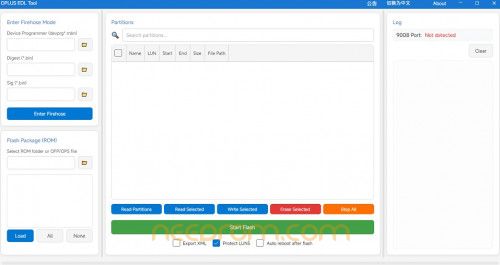
The OPLUS EDL Tool (V2.0.1) is a tool free, GUI-based utility designed to unbrick OnePlus, Oppo, and Realme devices by flashing firmware directly in Emergency Download (EDL) mode. Developed as a successor to command-line tools, it simplifies the process of recovering devices that cannot access the OS or Fastboot by allowing users to read, write, and flash partition files. It supports importing official firmware packages (including merging super partitions) and works with newer chipsets like the Snapdragon 8 Gen 2 (e.g., OnePlus 11), often bypassing the need for authorized accounts which restricted older tools like the MSM Download Tool.
The Step-by-Step Process
Step 1: Open the Tool
Go to the folder where you extracted the tool and double-click the EXE file (usually named OplusEDL V2) to launch it.
Step 2: Load the Configuration Files
You will see three specific icons for loading files; fill all of them:
Device Programmer: Select the programmer file (usually an ELF file matching your chipset).
Digest File: Select the digest file (ELF format).
Sign File: Load the sign.bin file.
Step 3: Load the Firmware
Click the Folder icon to browse for your firmware.
Select the folder where your unbrick firmware is located.
Crucial Step: When asked to "Merge Super Partition," click YES.
The tool will take about 4–5 minutes to merge these files.
Step 4: Load the Maps
Once merging is done, the tool will show XML files.
Click "All" to select every file.
Click "Load" to populate partitions (around 65).
Step 5: Connect Your Phone
Click "Enter Firehose" in the tool.
Turn off and unplug your phone.
Hold both Volume Up and Volume Down buttons.
While holding, plug in the USB cable.
The tool should detect your phone and show a COM port.
Step 6: Flash the Device
Once confirmed in Firehose mode, click "Start Flash."
Tip: Check "Auto Reboot" if you want automatic restart.
Flashing takes about 15–20 minutes.
Step 7: You're Done!
When the progress bar finishes and the log says "All operations are now done successfully," your phone is unbricked! It will reboot automatically (if selected) or you can restart manually.
PASSWORD: 123
THANK AND DONATE…
FILE FREE
※Please make a backup of your device before installing or updating ROM

|
very good