
- Title: PhilZ recovery
- Listed: November, 2015
- Last modified: 11/11/2015 2:04 pm
- Version: + easy ROOT
You must be logged for ROM download.
17638 total views, 2 today
4 Total favorites
 Member Info
DESCRIPTION
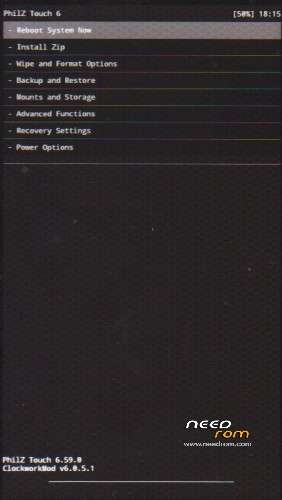
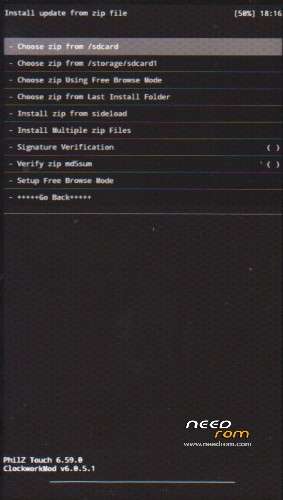
PhilZ Touch recovery v3 for Elephone P8000 + easy ROOT
I am not the author, the author is russian gaz123cvnf. Very thank him for to compile this latest version for us. The only reason why I recorded it here is to help many English speakers who can't access to Russian forum - they don't speak Russian, can not handle the registration. I hope the author will not be angry I recorded it here. If so, I will delete it. Authors post is here: http://4pda.ru/forum/index.php?s=&showtopic=678045&view=findpost&p=43622671
PhilZ_recovery_P8000_v3.zip -> only buttons suport
PhilZ_recovery_P8000_v3_touch.zip -> new version with touch support
How to install it to mobile phone:
a) Flash the recovery.img file with app Flashify (need ROOT)
- How to ROOT:
- go to Settings/About phone -> click 8x on "Build number", will get new entry "Developer options" in "Settings"
- go to Settings/Developer options -> enable "OEM unlocking"
- from Google Play download and install "SuperSU" apk - https://play.google.com/store/apps/details?id=eu.chainfire.supersu
- SuperSU will promt, use "Normal" binary instalation (restart phone)
- after phone restar you will have ROOTed phone -> very easy
- unpack PhilZ archive in PC, move recovery.img file to phone (SD card)
- install Flashify apk prom Google Play - https://play.google.com/store/apps/details?id=com.cgollner.flashify
- use Flashify to install recovery.img file (Flash->Recovery image->Choose a file->File explorer->Select your "recovery.img" file -> "/sdcard" folder-> click "YUP!"
- done, restart to recovery -> OFF the phone, then press and hold Power and Volume+ tiill you will see
- by pressing button "Volume+" set "Recovery mode"
- press "Volume-" to start PhilZ recovery
b) Flashtool
- install drivers (as administrator)
- unpack Flasher archive in PC
- unpack PhilZ archive in PC
- run Flashtool
- click on "Scatter-loading" button and in folder where you unpacked PhilZ archive choose file "MT6582_Android_scatter.txt"
- it should be checked only one item "recovery"
- switch OFF your phone
- first click on "Download" button and then connect your OFF phone to the PC
- the bottom line will take place yellow, purple and red stripes. Successful upload is indicated as on picture:

- done, restart to PhilZ recovery (press and hold together "Power" and "Volume+" buttons)
- will see:
- by pressing button "Volume+" set "Recovery mode"
- press "Volume-" to start PhilZ recovery
Other important instructions:
Do not forget erase file recovery-from-boot.p from System folder, otherwise, it restores stock recovery after the restart.
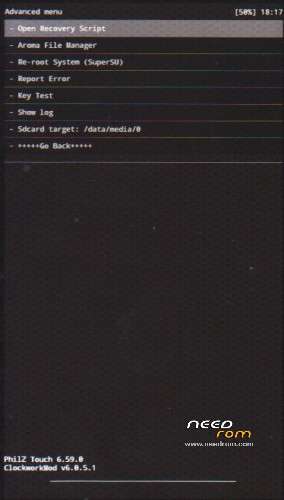
When working with original stock ROM versions "151014" / "151105" (October 14 / November 5), it is recommended to switch point "Advanced Functions" -> "Sdcard target" switch "/ data / media" (without the 0 at the end) and restart recovery. The rest of the folder to "0" can be removed. This should be done only once after installing Philz.
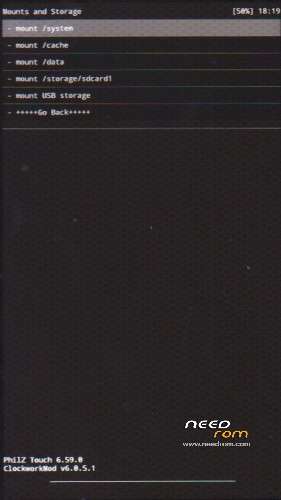
If you want to use external SD card (such as a Backup to it) the first thing you have to do is mount SD card manually. This is done in the "Mounts and Storage" -> "mount / storage / sdcard1". External SD card must mounted with each new start Philz recovery.
※Please make a backup of your device before installing or updating ROM