
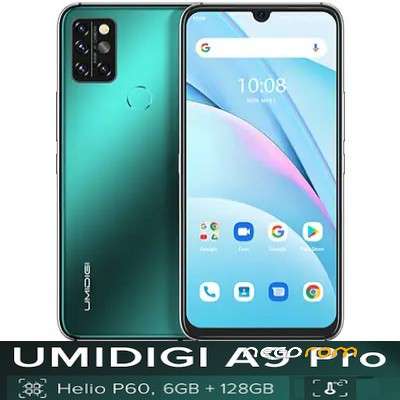
- Title: UMIDIGI A9 PRO 6/128Gb (2020) FINAL UPDATE OFICIAL ROM
- Listed: May, 2023
- Last modified: 05/11/2023 7:19 am
- Version: UMIDIGI A9 PRO 128GB V1.0 20220325
You must be logged for ROM download.
7025 total views, 3 today
2 Total favorites
OFFICIAL

 Member Info
DESCRIPTION
SP Flash Tool
Here's an optional solution to start the flashing process on your UMIDIGI A9 Pro if the standard method doesn't work.
It's especially useful if your phone is bricked or is stuck in bootloop
Extract the .rar file before use. The scatter file (MT6771_Android_scatter.txt) is inside the extracted folder, together with the other components
1. Connect your phone to USB.
2. Start the flashing process with the Download button in the flasher app.
3. Press and hold the power button of your phone until the flashing process starts (red bar appears at the bottom of the app window), then release it. In this process you have to keep the power button pressed for about 10 seconds.
4. Wait until the flashing process finishes.
VCOM driver: Windows 10 can automatically install it. Please make sure that your Windows is logged in with administrator rights and your computer has a working internet connection when first time connecting your phone.
OTA (recovery) update
Manual (local) OTA update method instructions
Copy the downloaded .zip file to the internal storage of your phone
Go to Settings → About phone → Wireless update
Tap the 3-dot menu button in the top right corner and select Local Updates
Brows for the …update.zip file and select it
Select INSTALL NOW, then OK in the Warning window. Your phone reboots into recovery, the update gets installed, then your phone boots into Android. Your updated system is ready to use.
Go to Settings → About phone → Wireless update
Tap the 3-dot menu button in the top right corner and select Local Updates
Brows for the …update.zip file and select it
Select INSTALL NOW, then OK in the Warning window. Your phone reboots into recovery, the update gets installed, then your phone boots into Android. Your updated system is ready to use.
Optional method (in case if the manual OTA update gets stuck): Install from recovery
You need a microSD card (with at least 4GB capacity) installed in your phone!
Copy the …update.zip file to your SD card.
Press and hold the volume-up and power buttons together until your phone restarts. As soon as the boot screen flashes up, release the power button and keep only the vol-up button pressed.
In a few seconds, your phone boots into Recovery and you see a lying android figure with an exclamation mark in red triangle on its tummy, and ‘No command’. Release the vol-up button.
Press and hold the power and vol-up buttons (in this order) together, then release them (first the vol-up button) to call the recovery menu. Now you can move with both volume buttons, and select an item with the power button.
Move to ‘Apply update from SD card’ and select it.
On the next screen brows for the update file and select it. The update process will start and needs a few minutes to be finished.
After a succcessful installation, you can read the ''Install from SD card complete.'' message and the recovery menu is available again.
Select 'Reboot system now'. Alternatively you can perform a factory data reset here by choosing 'Wipe data/factory reset'
Press and hold the volume-up and power buttons together until your phone restarts. As soon as the boot screen flashes up, release the power button and keep only the vol-up button pressed.
In a few seconds, your phone boots into Recovery and you see a lying android figure with an exclamation mark in red triangle on its tummy, and ‘No command’. Release the vol-up button.
Press and hold the power and vol-up buttons (in this order) together, then release them (first the vol-up button) to call the recovery menu. Now you can move with both volume buttons, and select an item with the power button.
Move to ‘Apply update from SD card’ and select it.
On the next screen brows for the update file and select it. The update process will start and needs a few minutes to be finished.
After a succcessful installation, you can read the ''Install from SD card complete.'' message and the recovery menu is available again.
Select 'Reboot system now'. Alternatively you can perform a factory data reset here by choosing 'Wipe data/factory reset'
Kind request from users:
Please report any kind of new issues you experience after installing this update only if you've already flashed this ROM with SP Flash Tool in Firmware Upgrade mode. In rare cases a FOTA update can cause more or less serious malfunctions but that means only the update process went wrong, not a badly developed ROM. An updated stock ROM, especially related to the basic functions will not cause any new issues but will solve some of the existing ones.
※Please make a backup of your device before installing or updating ROM

|
LOS LINK NO FUNCIONA