
- Title: Razr XT910
- Listed: March, 2013
- Last modified: 07/01/2013 6:24 pm
- Version: ROM Android 4.2.2 Avatar
You must be logged for ROM download.
18815 total views, 1 today
1 Total favorites
 Member Info
DESCRIPTION
ROM Mobile Razr XT910 GSM – ROM Android 4.2.2 Avatar
Update Version Stable Avatar 3.0 – 06/28/2013
Update Official Avatar Version : avatar-2.13b-1014-20130601-umts_spyder
Features ROM:
Status Bar Toggles page to contain controls for toggles
Fixed memory leaks
Theme Chooser Has an online theme server – head here and download cool MIUI converted themes.
Changed the layout
Added previews
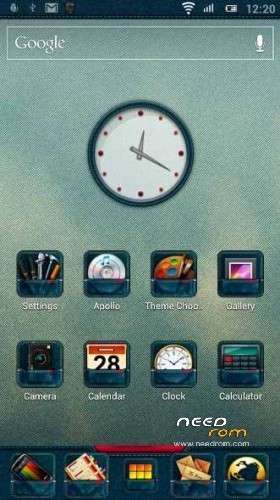
Bazooka Launcher (market link) Own launcher which is an enhanced version of Trebuchet (you can download this at the end of this post)
Enhanced theming by adding dockbar
Preview mode to edit workspaces
Messaging App Changed message thread to make them themeable
Boot Animation A beautiful boot animation – will be made themeable in upcoming versions
Settings Changed statistics to point to Avatar statistics server
OTA updater – you can check for updates to Avatar right from your device
Changed to support Avatar ROMs
Support for Gapps – download latest Gapps package as an OTA update
Framework Integrated with ACRA Error Reporter for system wide crashes
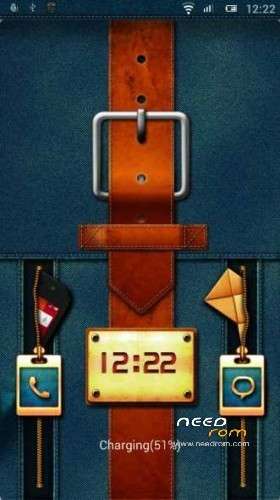
Lockscreen Changed to make them themeable
Support for complex unlock gestures
AvatarROM v2.4b Changes Over Previous Build:
Latest CM 10.1 code merges for 2.4b release( upto Mar 22nd 2013)
Two new themes (MiUi v5 and Pink theme)
Weebo and status bar fixes.
Weebo adding actions in log.
Performance improvements in animations.
Install ROM :
Connect your smartphone to PC using USB cable.
Copy downloaded files to the SD card of your smartphone. Important: Don’t extract any files.
Disconnect USB and then turn off your smartphone.
Now boot into Safestrap recovery. To do so, first press power button to turn device on then after the Motorola splash screen, you should see the Safestrap screen. The Safestrap screen should show Safestrap Disabled in red, Recovery at the bottom left, and Continue at the bottom right. Tap on Recovery button on the Safestrap main screen to boot into Safestrap recovery mode.
Now it’s time to set up a ROM slot for CM10.1. To do so, tap on Boot Options and in the very next screen tap on ROM-Slot-1. Now set the data partition to a minimum of 1GB unless you planning to install tons of apps and games. The other two partitions – system and cache are default and cannot be changed. Wait for the partitions to get set up.
Once the process completed, your ROM slot is ready. Which means it will boot from that new slot from now on. All we have to do now, install a ROM on that slot, which in our case is Avatar
Press the home button to return back to the main screen. Now tap on Install and navigate and select avatar-2.4b_392_20130325_umts_spyder.zip On the next screen, slide the button to confirm the installation.The ROM installation will begin.
Once the ROM installation process end, repeat the step 7 but choose gapps-jb-20130301-signed.zip instead of ROM zip to install the Google apps package.
When installation is completed, go back to the main menu and select reboot system to reboot the smartphone and boot up into customized Android 4.2.2 Jelly Bean ROM Avatar. The first boot will take time, so be patient!
Loading...
gracias thanks
:O MOG
WiFi is not work