
- Title: And411 S113mod
- Listed: June, 2014
- Last modified: 10/02/2014 1:07 pm
- Version: v.39 True multilang
You must be logged for ROM download.
58565 total views, 4 today
4 Total favorites
 Member Info
DESCRIPTION
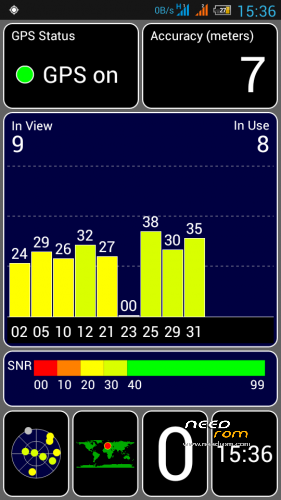
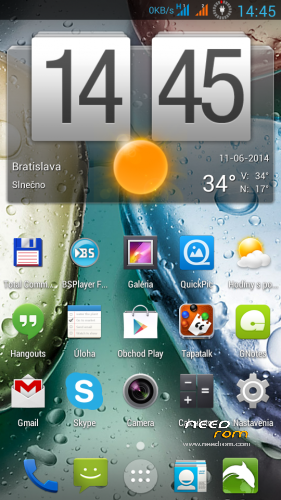
ROM Android 4.1.1, the most stable ROM for P770, mod of original Lenovo ROM S113_130424 (was designed for Europe). This is probably the best workining ROM for P770, works without problems and shortcomings encountered in different custom ROM, phone goes smoothly without lags. The big advantage of this ROM is really very good battery life, ROOT is included, ROM contains Google apps, LED notification works, writing SMS also works in landscape mode and GPS fix is fast (considering options MTK6577 chip). The older version of the Android does not matter, differences compared to Android 4.2.2 are minimal. ROM is suitable for people who do not conform to errors an unoriginal custom ROM.
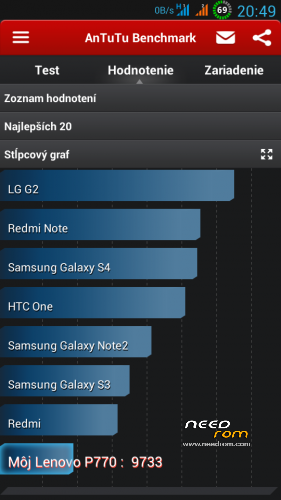
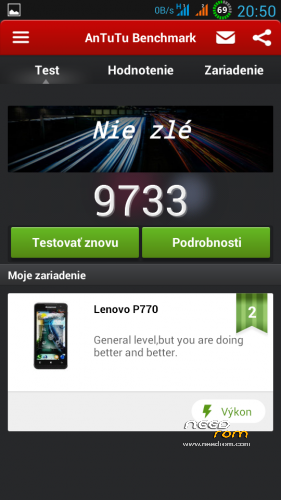
Max. Antutu rank: 9733
Languages support to v.16: Bahasa Indonesia, Bahasa Melayu, Czech, English, Slovak, Tieng Viet, Russian, Chinese
Languages support from v.17: Afrikaans, Arabic, Bahasa Indonesia, Bahasa Melayu, Bulgarian, Catalan, Croatian, Chinese (simplified, traditional), Czech, Danish (Dansk), Netherlands (Dutch), English,, French, German (Deutsch), Greek, IsiZulu, Italian, Japanese, Korean, Lithuanian, Latvian, Magyar, Norwegian, Polish, Portuguese, Romanian, Russian, Rumantsch, Serbian, Slovak, Slovene, Spanish, Swedish, Svenska, Turkish, Tagalog, Tieng Viet, Vietnamese, Ukrainian, Taiwan, … (some languages haven't translated all phrases, languages are from Foxtrot ROM, help with better translation, info bellow)
My homepage (in slovak only): http://androidforum.cz/post769445.html#p769445
Modifications:
- New installation script
- Deodex
- Root
- Added Busybox
- Changes in build.prop
- Added multilanguage translations
- Discarded all chinesse apk
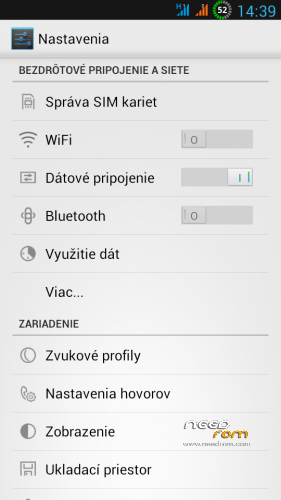
- Added automatic startup item in Settings
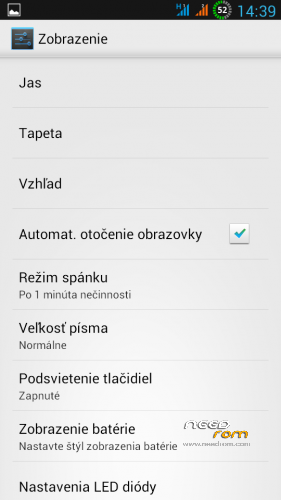
- Added Battery item in Settings
- Added "Engineer Mode Settings" in "Settings/Developer options"
- Added item Reboot/Recovery to Power button
- Added buttons for Call and SMS to Call details card
- Added Torch (bulb) to lockscreen
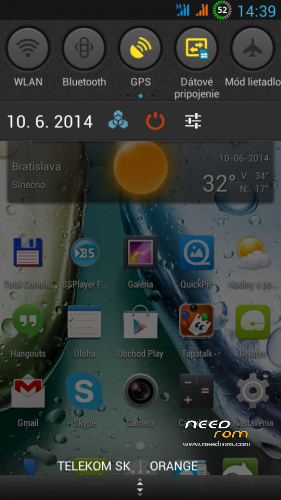
- Added download data stream monitor in the notification bar
- Unlock the screen into 4 pages
- Added sensitive modem V15_P15
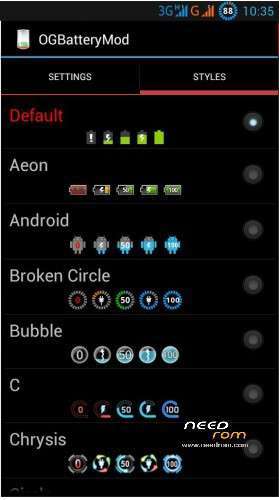
- Change the display battery status - OGBatteryMod v2.1.0 - change battery style in Settings/Display/Battery Style
- Changed boot/shutdown animation
- Option to manually change the brightness in the notification bar (if auto mode is switch off)
- Infinity Engine for better performance in games
- Zipalign
- Unlocked boot.img
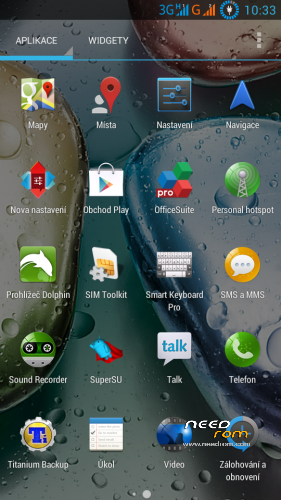
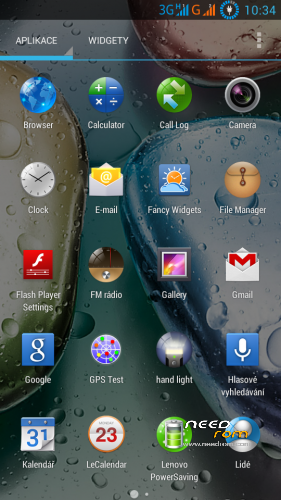
- Added useful apks (can be uninstalled by default)
- Corrected some small errors of the original ROM
- Remove chinese/russian applications
- Add performance modifications
- Change default launcher
- Add Lenovo Power 1.6.7. apk
TWRP/CWM is required for an installation.
TWRP 2500 here: http://yadi.sk/d/5e4SK60p5nrGU
CWM 5504 here: http://yadi.sk/d/awAUa-Ve2gMMK
If you haven't good CWM (there is no Install choice) and your ROM is ROOTed use this instalation procedure:
1. Download file "recovery.img" (it's TWRP 2.5.0.0) http://d-h.st/UTJ,save it to the root directory on SD card
2. Install Mobile Uncle apk from Google Play and run it (ROOT required)
3. Choose "Recovery update", you will see file list on SD card, first is "recovery.img"
4. Pop up two choices, click 2x to OK:
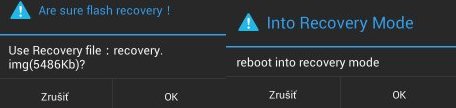
5. Now you are in TWRP 2500
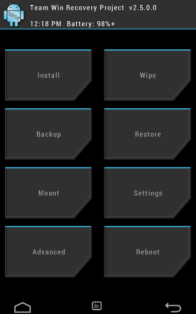
Installation:
1. Format SD card and place ZIP ROM on SD card
2. If you haven't it, install TWRP recovery (see above), go to TWRP
3. First Wipe (select all options except SD card), then install ZIP ROM
-in TWRP click on Install button and choose ZIP file ROM
-drag button "Swipe to Confirm Flash" to install it
-click on button "Clear cache/dalvik"
-clicik on button "Reboot System"
4. System will restart – patience required – first boot takes a while
5. Go to Settings/Storage/default write disk, click here to "SD Storage" and then "OK"
6. Phone restarts and boots up
7. Done, using phone
8. To display the number of unread e-mails, SMS and missed calls on the corresponding icons, install this modified Tesla plugin for Nova Nova Launcher and in Nova settings turn it on - http://uloz.to/xSb37fQU/teslaunread-plugin-2-3-apk
9. To change battery style, click on icon Settings/Display/Battery Style
10. Setup well Lenovo Power apk (for better battery life)
If you do not know how to adjust it well, do NOT switch ON functions in Smart Settings of Lenovo Power 1.6.7. apk:
– Wake locklist
– Whitelist settings
– Manage whitelisted apps
If you set it wrong, the battery life will be shortened.
11. Disable popup notification of Superuser application
12. Setup well set Lux Auto Brightness.apk:
- run icon Lux Dash
- in the window set up "Adjust" to "Dynamically", "Using profile" to "Day"
- now click on the icon looks like cog-wheel, select "Profile Editor"
- click on "Add" and enter the following values (first setup "Lux", enter number, then drag to set the brightness in %):
0 lux – 10% brightness
40 lux – 25% brightness
100 lux – 50% brightness
10000 lux – 99% brightness
- come back, select "Advanced", then click on "Light sample interpolation" and select "Cubic" (very important!)
- done
GPS activation:
- connect to internet
- enable GPS
- go to Developer options/Engineer mode settings/Location/Location Based Service
- go to folder "GPS" click on "Full", then click on "GPS (OFF)"
- wait to GPS Fix, about 30 sesond (maybe more)
- if you have GPS fix, close Engineer mode
- try GPS fix in GPS Test application
If you have in your phone an earlier version of this ROM (e.g. v.08), you can simply install a new version (e.g. v.11). It is not necessary to do full wipe (as is described above). In TWRP simply install new version, do Wipe Dalvik/Cache and restart to system. All your personal settings will retained.
Warning: Do not use GravityBox in this ROM, most settings not working well.
If you have any problem with installation (especially if you have an asian ROM in phone) or something in phone don't work normally, first install standard european ROM S110, then install THIS ROM. Right order is: ROM S110 > CWM > TWRP > S113 ROM.
Here are instructions to install ROM S110 - http://forum.xda-developers.com/showthread.php?t=2220275
Memory repartition (optional):
Lenovo (as a most phones with Mediatek chipset) has normally very badly divided internal memory. This can be easily corrected by the repartition applications "anzhuo365.apk" http://d-h.st/ra0. Ideally reallocation of memory do immediately after installing ROMs, do not let them bother with the backup.
0. Make sure that you have installed TWRP recovery, link is above the download link ROM
1. Install apku "anzhuo365.apk" and run it
2. In the application, click the item "2.5 Гб внутр. Памяти, 80Мб SDСагd"
3. Then click on the "Загрузка в Rесоvегу", it throws you into TWRP recovery
4. In recovery click on the "Wipe" and uncheck all items except the SD card.
5. When deleting complete reinstall ZIP ROMs Android 4.2.2
6. Restart your phone should boot up
7. Done

8. If after memory repartition the phone hangs on the Lenovo logo, start TWRP, first do factory reset (swipe button in Wipe menu), then wipe all (except SD card) and finally install ZIP ROM again.
9. Then phone will work normally.
Allocation of memory for each application possibilities "anzhuo365.apk":
1 Internal memory 770 MB, SD Card 1.5GB, system 769 MB, data 769 MB, cache 513 MB
2 Internal memory 1GB, SD Card 1.5GB, system 769 MB, data 1 GB, cache 256 MB
3 Internal memory 2GB, SD Card 0.6GB, system 769 MB, data 2GB, cache 256 MB
4 Internal memory 2.5GB, SD Card 80 MB, system 769 MB, data 2.5 GB, cache 256MB
5 Internal memory 2.7GB, SD Card 20MB, system 769 MB, data 2.7 B, cache 128 MB
How to set a custom mellodies:
Custom mellody for SMS notification
1. give e.g. MP3 file to folder "Notifications" on SD card.
2. Then set it in Settings/Audio profiles/General/Notifications
Custom mellody as Ringtone
1. give e.g. MP3 file to folder "Ringtones" on SD card
2. Then set it in in Settings/Audio profiles/General/Voice call ringtone
Custom mellody as Alarm clock
1. give e.g. MP3 file to folder "Alarms" on SD card
2. Then set it in icon Clock, choose Alarms, set alarm time and choose your melody
Help with better translation into other languages:
1. Download ZIP file "used_languages.zip", unpack it – link is above
2. Install text editor Notepad++ http://notepad-plus-plus.org/download/v6.6.3.html
(translate strictly in Notepad++ editor)
3. The best way to translate:
- setup phone to your language, e.g. Slovak
- If you see some english text in phone settings, use e.g. Total Commnder and find this text (you have to find text in files) in files form ZIP archive
- you will find location of english text in file name (e.g. strings.xml in folder values)
- find the same file in slovak folder (values-sk)
- copy full strings from english file to slovak file and translate it, e.g.

– do it for all english text which you found
6. If you will have translated files, send me it, I will prepare a new version of ROM
※Please make a backup of your device before installing or updating ROM
There is a new version nr. 19:
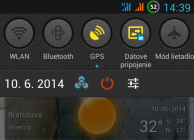
- I returned back the original look of notification bar – clock right, without the Power button…
Is there any way to get rid of that power button in the notification bar without flashing a newer ROM? I already flashed .17 and heavily customized it, and wouldn't really want to repeat this if avoidable.
It is easy – flash version 19 through an older version. Go to TWRP and simply flash version 19. After it first click on "Wipe Dalvik/Cache" button, then click on "Restart to system" button. Phone will restart to system and all your custom settings and applications will be retained, as they were prior to installation. Nothing needs to be backed up.
I wrote it above:
If you have in your phone an earlier version of this ROM (e.g. v.08), you can simply install a new version (e.g. v.11). It is not necessary to do full wipe (as is described above). In TWRP simply install new version, do Wipe Dalvik/Cache and restart to system. All your personal settings will retained.
Well, my customizations actually consist mainly of removals/replacements of quite a few superfluous apps (for me) from your original .17 ROM, and i really would like to avoid going through the stages again once they would have been restored by flashing a newer ROM version.
So, unless there really is no other option to remove that power button, i would like to avoid this. Is there any chance? Or is this hardcoded in some binary?
If there is no other option, i'd rather live with that power button than upgrading the ROM as the only means to get rid of it. Time is very scarce resource, as you surely will agree.
I do confirm that all the settings are preserved and you have Titanium Backup included to be sure.Your time is precious,but rbarat time is not,is that what are you saying?By all means,I want to thank rbarat for the tedious work of developing the most stable ROM for P770 pro bono.Respect!
Thank you
You can install v.19 over existing version. All your personal settings and custom applications will retained.
Changes regarding not. bar are only in file LenovoSystemUI.apk., but you cant install it easy as normal apk file.
@rbarat: Thanks for this decisive hint! I used adb in Linux to open a shell on the phone, switched to root, remounted /system read/write and simply replaced LenovoSystemUI.apk with the one extracted from your .19 ROM. After that i remounted /system in read/only, rebooted into recovery and wiped the caches, and this way i easily got rid of the power button. Everything works as intended.
@firuromania: Please abstain from putting words into my mouth just because you don't seem to properly understand what i actually wrote. Thanks!
My time is scarce and by no means less precious than anybody elses' time. Of course, the other way around also applies, and therefore i also thank rbarat for putting so much effort into his multiple projects. Cool stuff, mate!
Being myself the author of a few open source projects during the last 15 years, i do know that there never is any real reward for the amount of time invested, and if others wouldn't provide their work as freely as i do myself, i would have stopped bothering. Thanks a lot, rbarat!
There is a new version nr.20 – added download data stream monitor in the notification bar

I like the power button on the status bar. Combine it with gravity screen makes me unnecessary to use the physical power button and can avoid it being damage by extensive use over time.
Use version nr.18 – there is power button in notification bar…. But there is no download data meter….
Or… the power button is still placed in an open status bar:
is it oke for this rom to add performance and battery tweak?
This ROM already have the best battery life – you have to setup Lenovo Power apk. It is not necessary to use another apk for battery. I do not recommend adding another application for battery tweak!