
- Title: Bionic XT875
- Listed: March, 2013
- Last modified: 03/13/2013 12:40 pm
- Version: ROM Android 4.2.2 LiquidSmooth
You must be logged for ROM download.
16997 total views, 1 today

 Member Info
DESCRIPTION
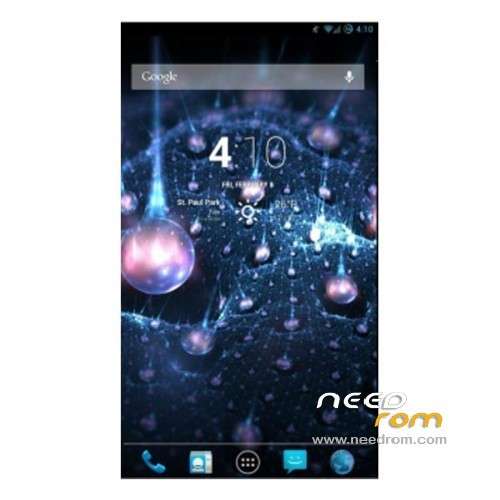
ROM Mobile Bionic XT875 – ROM Android 4.2.2 LiquidSmooth
Features ROM:
Google GCC 4.7 Toolchain
O3
Strict-Aliasing (Linaro)
C++11 Mode
Optimized String Handling Routines (Linaro/Sony)
Misc other Linaro and Code Aurora Optimaztions
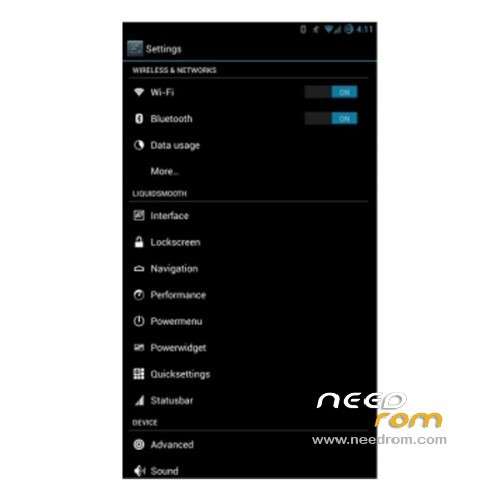
Customizable lockscreen buttons and sliders
Chronus clock widget
Customizable hardware and software keys
Transparent navbar and status bar
Customizable navbar ring
Navigation bar widgets
Customizable power menu
Customizable quicksettings panel
Statusbar mods
Theme engine
Quiet hours
Volume rocker music controls
Full Rotation
Customizable battery and notification light
Language support: Multilang
Install ROM :
Connect your smartphone to PC using USB cable.
Copy downloaded files to the SD card of your smartphone. Important: Don’t extract any files.
Disconnect USB and then turn off your smartphone.
Now boot into Safestrap recovery. To do so, first press power button to turn device on then after the Motorola splash screen, you should see the Safestrap screen. The Safestrap screen should show Safestrap Disabled in red, Recovery at the bottom left, and Continue at the bottom right. Tap on Recovery button on the Safestrap main screen to boot into Safestrap recovery mode.
Now it’s time to set up a ROM slot for LiquidSmooth. To do so, tap on Boot Options and in the very next screen tap on ROM-Slot-1. Now set the data partition to a minimum of 1GB unless you planning to install tons of apps and games. The other two partitions – system and cache are default and cannot be changed. Wait for the partitions to get set up.
Once the process completed, your ROM slot is ready. Which means it will boot from that new slot from now on. All we have to do now, install a ROM on that slot, which in our case is LiquidSmooth.
Press the home button to return back to the main screen. Now tap on Install and navigate and select Liquid-JB-v2.1-RC1-targa.zip. On the next screen, slide the button to confirm the installation.The ROM installation will begin.
Once the ROM installation process end, repeat the step 7 but choose gapps-jb-20121212-signed.zip instead of ROM zip to install the Google apps package.
When installation is completed, go back to the main menu and select reboot system to reboot the smartphone and boot up into customized Android 4.2.2 Jelly Bean ROM LiquidSmooth. The first boot will take time, so be patient!
Loading...